Diagnose one source at a time
If your gaming stream sounds wrong, begin with a short local recording and isolate the microphone, game, and music sources. Find out whether the problem is already present in one source or appears only when they play together. Then change one part of the setup and record another sample.
A louder microphone does not fix every unclear mix. You may be hearing duplicate capture, a distorted input, an overly busy soundtrack, or music competing with the words. Each needs a different response.
This guide provides a troubleshooting workflow, not a tested preset for your equipment. Use the actual recording as the evidence.
Make a source map before touching filters
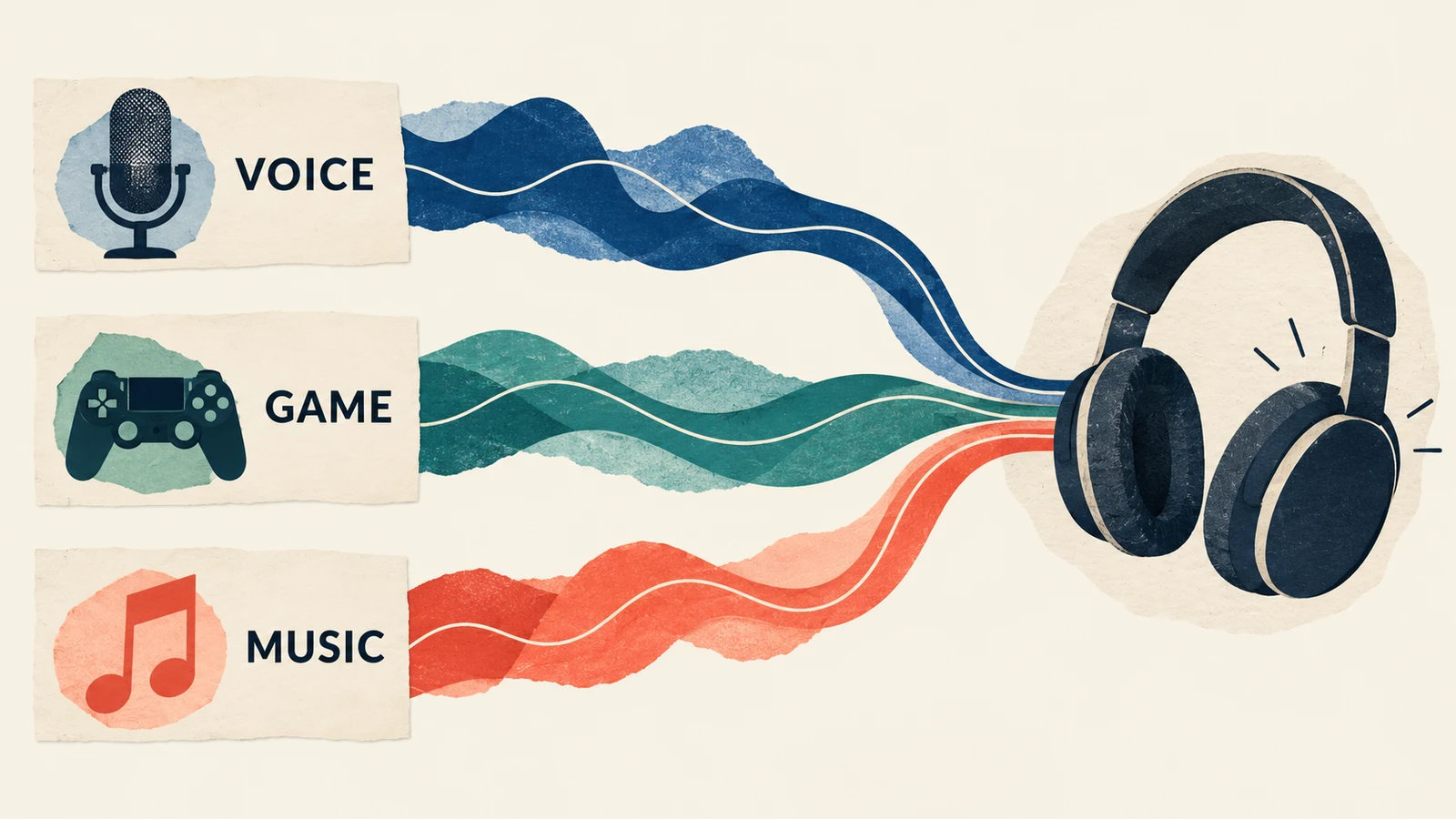
List what the audience should hear and how each sound enters the broadcast. Include voice chat and alerts if you use them. Note whether any application is captured individually and also through a broader desktop source.
| Source | What to listen for alone | What to check in the full mix |
|---|---|---|
| Microphone | Clear words, clean loud reactions, stable input | Speech remains understandable during gameplay |
| Game | Effects and dialogue arrive once and sound intact | Important cues remain audible without burying speech |
| Music | No unexpected jumps or distracting vocal passages | It supports the stream rather than becoming a second foreground |
| Voice chat | Each participant is understandable | Guests do not disappear beneath the game |
| Alerts | The intended sound plays once | It does not overwhelm an ongoing sentence |
Use clear source names. If a sound appears twice, inspect the capture paths before trying to correct it with an effect. Muting sources one at a time in a private test can help identify which path contributes the duplicate.
Establish a usable microphone signal first
Record ordinary speech, a quieter sentence, and a louder reaction at your normal microphone position. Listen to whether the words remain clear throughout. Keep the test comfortable; you do not need to shout dangerously or monitor at excessive volume.
If the microphone is already distorted on its own, investigate the input and gain before adding the other sources. Turning down a damaged signal later does not restore the detail lost earlier in the chain.
If words vanish at the start or end of a sentence, inspect any gate or other processing you have enabled. Disable one effect for comparison during the test rather than adding another layer immediately.
The OBS Filters Guide distinguishes tools such as noise suppression, gates, compressors, and limiters. Their purposes differ. Choose an effect for an identified problem instead of copying a long filter chain without knowing what each stage changes.
Bring in the game, then the music
Once the voice is usable, add game audio and record a representative moment. Include an active scene, not only a quiet menu. Speak naturally while the game is busy, then listen back without watching the meters.
Can you follow the sentence? Can you still recognize the game information that matters? Lower or rebalance competing sources rather than repeatedly increasing everything.
Add music last. If the game already has a prominent soundtrack, decide whether an additional track helps. Two unrelated musical arrangements can make the result cluttered even when neither is especially loud.
For background music, compare a sparse instrumental with a busier track at similar levels. If you want an original direction, try this brief in AISongsGenerator's music generator, using Instrumental:
Restrained instrumental background for a conversational gaming stream. A gentle pulse, warm texture, and minimal lead melody. Leave room for speech and game effects. Avoid vocals, sudden drops, sharp transitions, and dramatic buildups.
This describes a desired sound, not a guarantee of a finished broadcast mix. Audition the generated file and check the applicable terms before using it. Our music for live streams guide covers the separate permission question.
Use ducking when the balance needs to change with speech
Ducking lowers one source when another becomes active. It can help background audio leave room for your voice, but it should follow a reasonable basic balance rather than rescue an unnecessarily loud soundtrack.
OBS's Compressor Filter documentation describes choosing a microphone as the Sidechain/Ducking Source on the audio source you want to reduce. In that setup, speech triggers a reduction in the selected background source. Threshold affects when compression starts; attack and release affect how quickly the reduction begins and ends.
Apply this to the source you intend to lower. If your game and music share one captured source, ducking that source affects both. If you need different behavior, first check whether your setup supports capturing and controlling them separately.
Record a test with a normal sentence, a short pause, and another sentence. Listen for music rising too noticeably between phrases or staying low longer than intended. Adjust the behavior and compare another recording. Do not treat any published starting values as universal settings for your microphone and content.
Match the symptom to the next test
| Symptom | A focused test |
|---|---|
| Echo or doubled sound | Mute capture paths one at a time and check for duplicate routing |
| Voice disappears during action | Compare the voice alone with the same passage in the full mix |
| Loud reactions sound rough | Check the microphone recording before background sources are added |
| First syllables are missing | Compare with the gate or related processing disabled |
| Music swells between words | Review the ducking trigger and return timing |
| Headphones sound fine but the recording does not | Check which mix and tracks the recording actually receives |
These are diagnostic starting points, not proof of a cause. Keep the change small enough that the next test answers a clear question.
Record the situations your stream actually contains
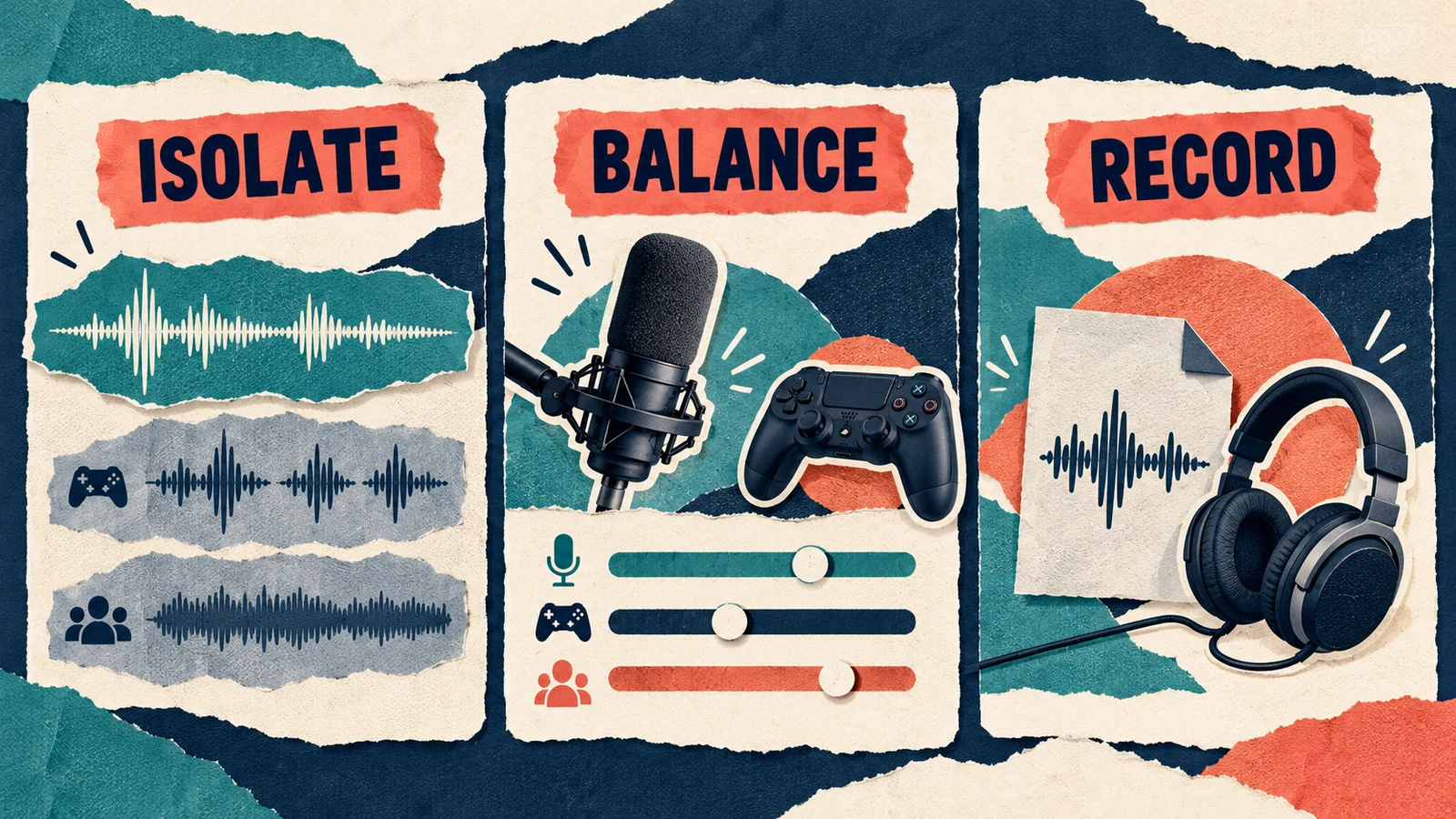
Make a private test that includes talking over gameplay, a louder reaction, silence, an alert, a scene change, and voice chat if relevant. Avoid using a live audience as the first place you discover a routing problem.
Play the saved recording on a normal listening device. Verify that it contains the same sources you expect to send to the stream. If recording and streaming use different track selections or routing, confirm both paths; a good recording of a different mix is not enough.
Keep notes such as “game dialogue masks my sentence” or “alert repeats.” Those lead to specific changes. “Sounds bad” is a reason to isolate the sources again.
If you also turn recordings into edited episodes, our podcast editing guide explains a separate cleanup and export review workflow. A live mix and an edited recording have different opportunities for correction.
Questions about gaming stream audio
Should music always be quieter than the game?
There is no single relationship that suits every stream. Start with the voice and the information the audience needs, then judge the supporting sources in context. A quiet conversation and a music-focused break may need different balances.
Will a limiter fix a distorted microphone?
Do not assume it will. Check where the distortion begins. Processing later in the chain cannot reliably reconstruct a signal that was already damaged at the input.
Is a local recording enough to approve the stream?
It is a useful first check when it captures the intended mix. Also verify the actual streaming path if it uses different tracks or settings, and review the delivered result before treating the setup as finished.
Save the setup that passed the test
Keep the source map and a short test recording with your notes. Recheck after changing a microphone, capture source, scene, or audio application. A repeatable test is more useful than a collection of settings whose purpose you no longer remember.