Make music fit your video length by choosing the right edit
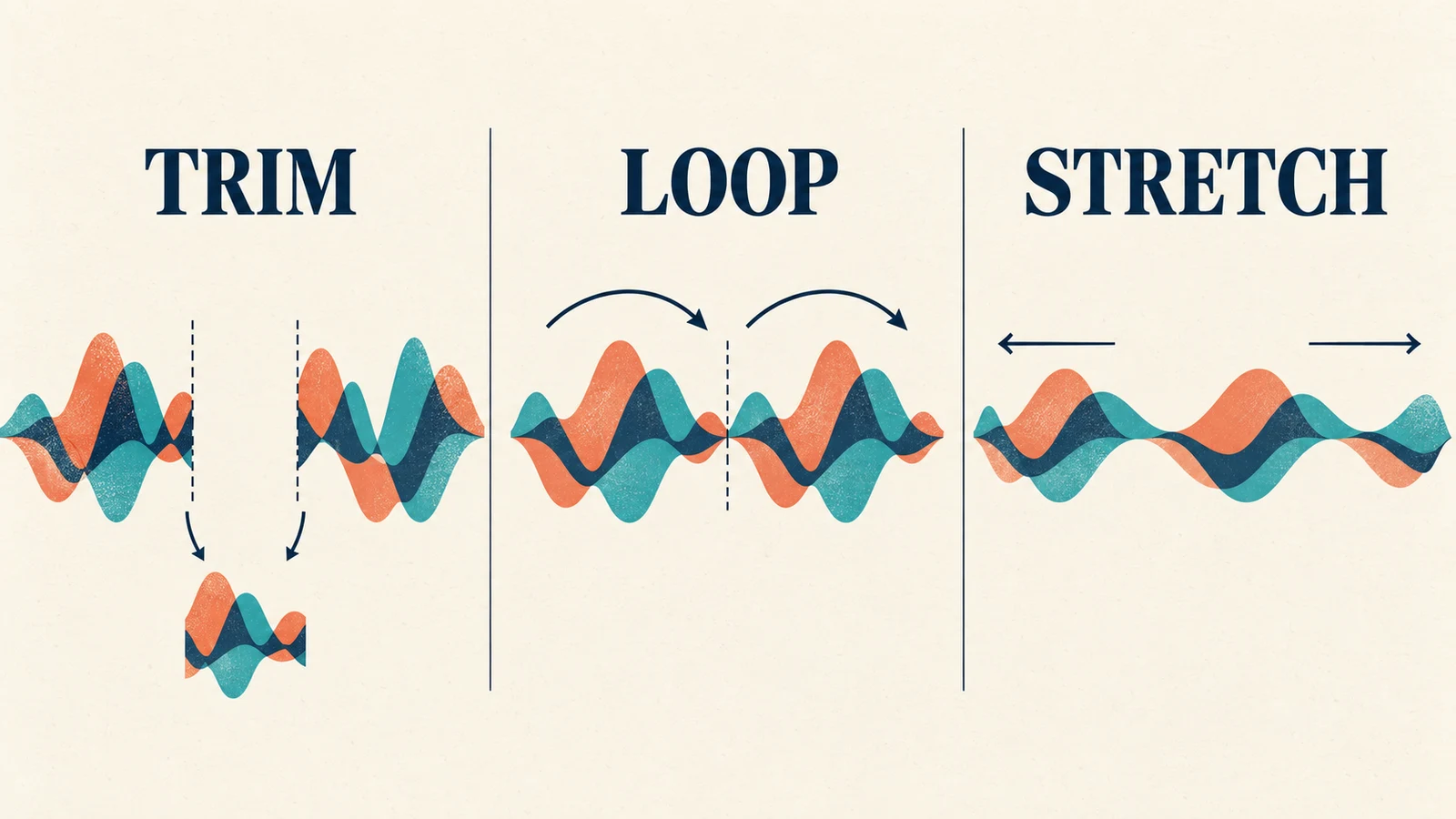
To make music fit your video length, first decide whether you need a different section of the song, a different arrangement, or a small tempo adjustment. Trimming works when you already have a useful passage. Repeating or removing musical phrases changes the arrangement. Time stretching changes how quickly the passage plays.
Start with the simplest edit that preserves the part you like. A 30-second video does not necessarily need the first 30 seconds of a song, and a track that reaches the final frame can still sound unfinished.
This guide gives you a manual workflow, an Audacity option for precise duration changes, and a Premiere Remix option for larger rearrangements. The examples are editing plans, not results from a listening test.
| Your situation | Start with | Listen for |
|---|---|---|
| The song is much longer than the video | Select a passage or remove complete phrases | A convincing beginning and ending |
| The music is too short | Repeat a suitable instrumental phrase | An obvious loop or mismatched chord |
| A good edit is slightly too long or short | Pitch-preserving tempo adjustment | Blurred drums or unnatural vocals |
| You need a substantially different arrangement | Automatic remix, then manual review | Awkward joins and displaced musical highlights |
1. Measure the music cue, not just the video
Before editing audio, settle the video timing as far as possible. Mark where the music starts, where it should resolve, and where it must become silent. These can be three different points.
For example, a 30-second product video might have music from 0:00, a final chord at 0:28, and two seconds for that chord to fade underneath the end card. Another edit might leave the first three seconds silent, giving the music only 27 seconds of screen time.
Write down:
- The cue's start and end positions in the video timeline.
- Any moment that needs a musical accent, such as a product reveal.
- Whether narration needs a quieter arrangement.
- Whether the ending should fade, stop sharply, or decay naturally.
Use your editor's timeline and export range as the timing authority. Do not estimate duration from the rounded number shown in a music player. Keep a copy of the original audio and edit a duplicate so you can recover a section later.
2. Shorten background music without cutting off the ending
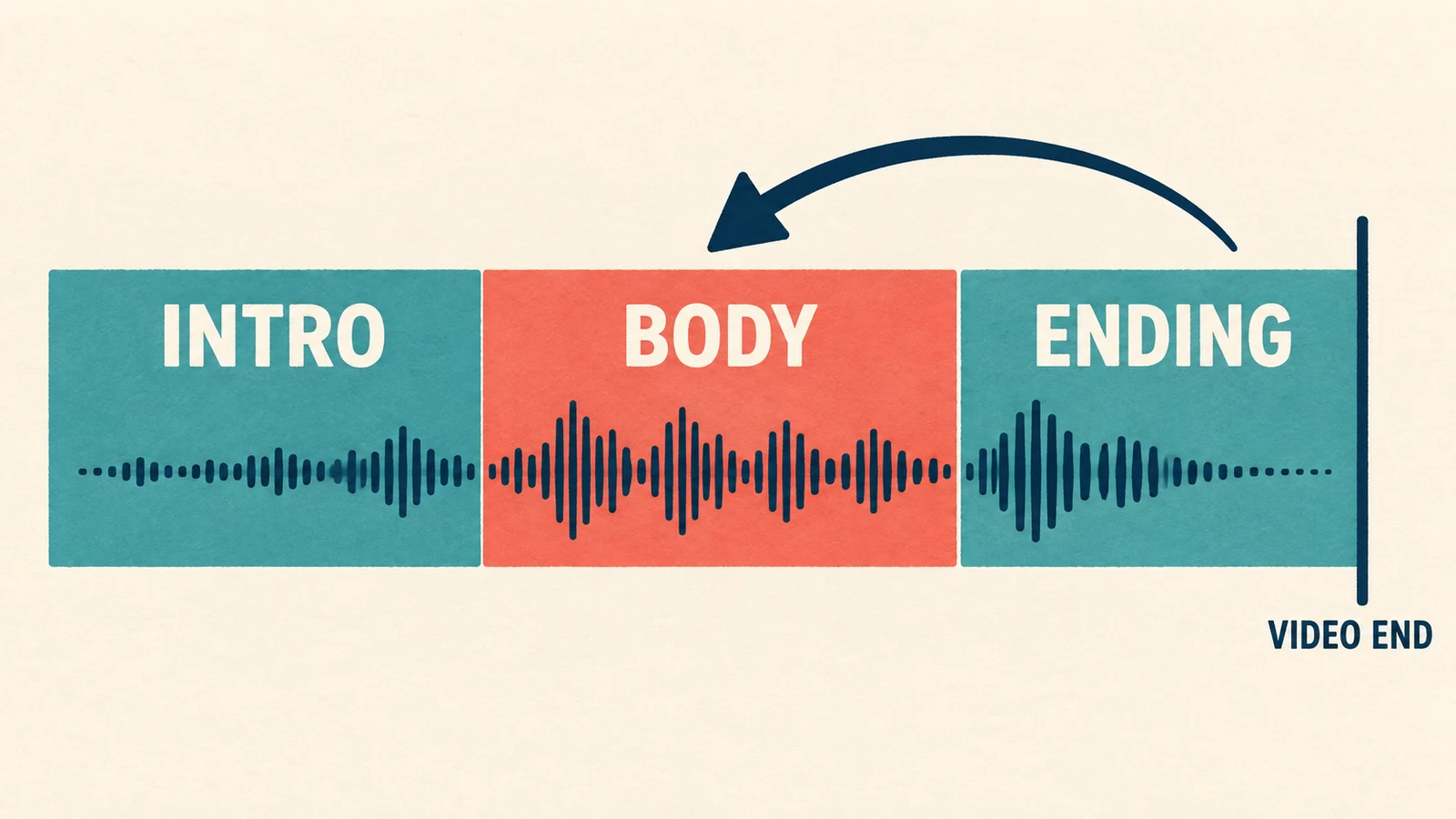
Find the ending before trimming the middle. Listen for a resolving chord, a final drum hit, or a section that can fade without interrupting a lyric. Place that ending where the picture needs it, allowing room for its decay. Then work backward toward the opening.
A practical manual edit looks like this:
- Choose an opening that establishes the mood promptly.
- Keep the ending you identified on a separate clip.
- Remove a repeated section between them.
- Join clips at corresponding beats, preferably where the harmony and arrangement also match.
- Listen across the join with the picture playing, then with music alone.
Counting beats helps, but a matching beat is only a starting point. Two downbeats can carry different chords, or one can include a cymbal tail that disappears at the cut. Move the edit to a better musical location before trying to hide it with a long fade.
A short crossfade can smooth a join. It can also overlap two drum hits and make them sound doubled. Audacity's crossfade documentation explains the basic approach: overlap audio and fade one passage out while the next fades in. Adjust by ear for the material rather than applying one fixed fade length everywhere.
3. Loop music when the video is longer than the track
Choose a repeatable instrumental passage with a stable rhythm and compatible harmony at its boundaries. Avoid looping a distinctive lyric unless repetition is part of the creative idea.
Duplicate the passage and place the copy after it. Listen through the boundary several times. If the rhythm hesitates, adjust the cut points; if the harmony jumps, choose a different phrase. A crossfade cannot fix an incompatible chord progression.
Keep the original ending available. Repeating the middle and then returning to that ending usually gives you more control than repeating the entire file, including its intro and fade-out.
For steady 4/4 music at 120 quarter-note beats per minute, one bar lasts two seconds. An eight-bar passage therefore lasts 16 seconds. That calculation can help plan an edit, but only when the tempo and meter actually stay constant. A loose performance or changing tempo needs listening and timeline markers.
4. Change the duration in Audacity without shifting the pitch
Use a tempo adjustment when the arrangement is already right and the remaining mismatch is small enough to audition comfortably. Making a two-minute song last 30 seconds by speeding it up is unlikely to preserve the intended feel.
Audacity's Change Tempo effect changes selection length while preserving pitch. Select the audio you want to adjust, open Effect → Pitch and Tempo → Change Tempo, and enter the desired value in the Length “to” field. Preview the result before applying it.
For a hypothetical 32-second passage that must become 30 seconds, the tempo increase is approximately 6.67%: (32 ÷ 30 − 1) × 100. Entering the target length avoids doing that calculation manually.
Pitch preservation does not mean the result will sound identical. Check vocal phrasing, cymbals, piano attacks, and sustained notes for audible changes. If the adjustment sounds strained, undo it and remove or repeat a phrase instead. Reimport the exported audio into the video timeline and confirm the endpoint there.
5. Use Premiere Remix for a different arrangement
Premiere Remix provides another approach when a music track needs a substantial duration change. It analyzes musical relationships and rearranges sections, rather than simply playing the entire recording faster.
Following Adobe's Remix workflow, select the music clip, open the Ripple Edit tool group in the toolbar, and choose Remix Tool. Drag the clip’s right edge toward the desired endpoint. Enter the target duration under Duration in Essential Sound, then listen through the revised track. Adjust the available customization controls if the joins or arrangement do not suit the video.
Check the resulting duration separately. Adobe notes that Remix typically gets within one second of its target, depending on the track. A target value is therefore not a promise of a frame-exact result. Finish any remaining difference with a considered trim, fade, or small tempo adjustment.
Pay particular attention to recognizable lyrics and the section supporting your main visual reveal. An automatic edit can produce the right length while moving the part you wanted to keep.
A 30-second cue: build backward from the final chord
Suppose your video has a reveal at 0:12 and an end card at 0:28. You want silence at 0:30. Use these as editing targets:
| Position | Editing decision |
|---|---|
| 0:00 | Begin with a useful musical entrance, without a long wait |
| 0:12 | Align an accent or section change with the reveal |
| 0:28 | Place a resolving chord or begin the final fade |
| 0:30 | Finish the audible tail within the export boundary |
Anchor the ending first. Next, find a passage that supports the reveal. Fill the remaining space by selecting, removing, or repeating material, then make the smallest necessary duration adjustment. These timings are an example brief; they are not a formula every song can satisfy.
If you are creating new source music in AISongsGenerator's music generator, describe the arrangement you need: an instrumental cue, a short entrance, a steady middle, and a clear ending. Treat a duration written in the prompt as creative direction. Measure the generated file and finish its timing in your editor. For an existing track, our guide to finding royalty-free music explains what to check before choosing a source.
Questions about matching music to video
Can I just trim the song at the final frame?
Yes, if the cut sounds intentional. Otherwise, a suitable fade or an earlier resolving passage will usually make the ending easier to follow. Listen to the final seconds without watching the picture; an interrupted lyric or chord becomes easier to notice.
Will slowing music down change its key?
A pitch-preserving tempo tool is designed to keep the key unchanged. Ordinary speed-and-pitch changes do not do the same job. Check which mode you selected and listen for processing artifacts before exporting.
Why does a loop sound wrong even when it is on the beat?
The chord, instrumentation, or decay may not match across the boundary. Choose compatible phrase boundaries and keep enough of the preceding sound's tail where appropriate. Length alone does not make two passages fit together.
Check the exported video before calling the edit finished
To make music fit your video length, solve the arrangement first and the final timing second. Play the exported video from beginning to end, check every audio join, confirm narration remains intelligible, and listen through the last chord or fade. If the music finishes naturally and the file ends at the intended boundary, the edit has done its job.