
Three free AI vocal remover options to investigate are VocalRemover.org for a browser-based split, Ultimate Vocal Remover for a desktop workflow, and Moises Free for a limited monthly allowance. Choose according to where you want to work and what you need to export, then listen to the result on your own recording.
This is a comparison of documented features and workflow choices, not a hands-on sound-quality ranking. No tool here is declared the cleanest, and none should be assumed to remove every trace of a singer from every mix.
Choose a workflow before choosing a winner

| Option | Documented starting point | What to check before committing |
|---|---|---|
| VocalRemover.org | Free online vocal/instrumental separation | Whether the site accepts your file and gives you the output you need |
| Ultimate Vocal Remover | Free, open-source desktop application | Installation instructions, model setup and your computer's resources |
| Moises Free | A limited number of song uploads | The current allowance, file length and available separation options |
These are three different ways to approach the job. A fast one-off task, a repeatable local workflow and a practice session inside an account do not necessarily call for the same tool.
VocalRemover.org: try a straightforward two-part split
VocalRemover.org describes a free online application that separates a song into an instrumental version and an isolated vocal version. Its page starts with a file-selection control, making it a reasonable candidate when your immediate goal is simply to hear those two parts.
Check the result before spending time on further edits. If you need the instrumental for practice, listen for the main melody still leaking through. If you want the vocal, listen for drums, guitar or other sounds that have followed it into the extracted track.
The site publishes a processing-time estimate, but this guide does not treat it as a promise for your file or connection. Confirm the current file and export options in the actual workflow rather than assuming that “free” means every format, file size or processing volume is supported.
Start here when: you want to investigate a simple browser workflow and do not need a large set of model controls.
Ultimate Vocal Remover: a desktop option to configure
Ultimate Vocal Remover is a free, open-source application advertised for Windows, macOS and Linux. The project's official GitHub repository provides downloads and setup information.
Its appeal is the desktop workflow: you can work with an installed application and its available separation models. The trade-off is setup. Read the instructions for your operating system, including model and hardware requirements, before assuming that an installation will behave identically on every computer.
Begin with one file and one configuration. Keep a note of the model and settings you used. If you try another configuration, compare the same passage in both outputs; otherwise, it is easy to mistake a louder or more flattering section for better separation.
Start here when: you want a repeatable desktop process and are comfortable spending time on setup and controlled comparisons.
Moises Free: check the allowance and separation preset
Moises offers stem separation as part of its music tools. Its free-plan help lists two presets: vocals/instrumental, or vocals/drums/bass/other. Its upload-limit page lists five songs per month on Free, with files up to five minutes long.
Check those limits in your account before uploading, since plans can change. A longer live performance may not fit the free file limit even when you only want to study a short section of it.
Decide whether you need two outputs or the available four-part split. More stems are useful only if you have a reason to inspect or change those parts separately. They do not, by themselves, establish better sound quality.
Start here when: the free allowance fits your material and you want to explore separation within Moises' broader workflow.
What “clean” should mean for your project
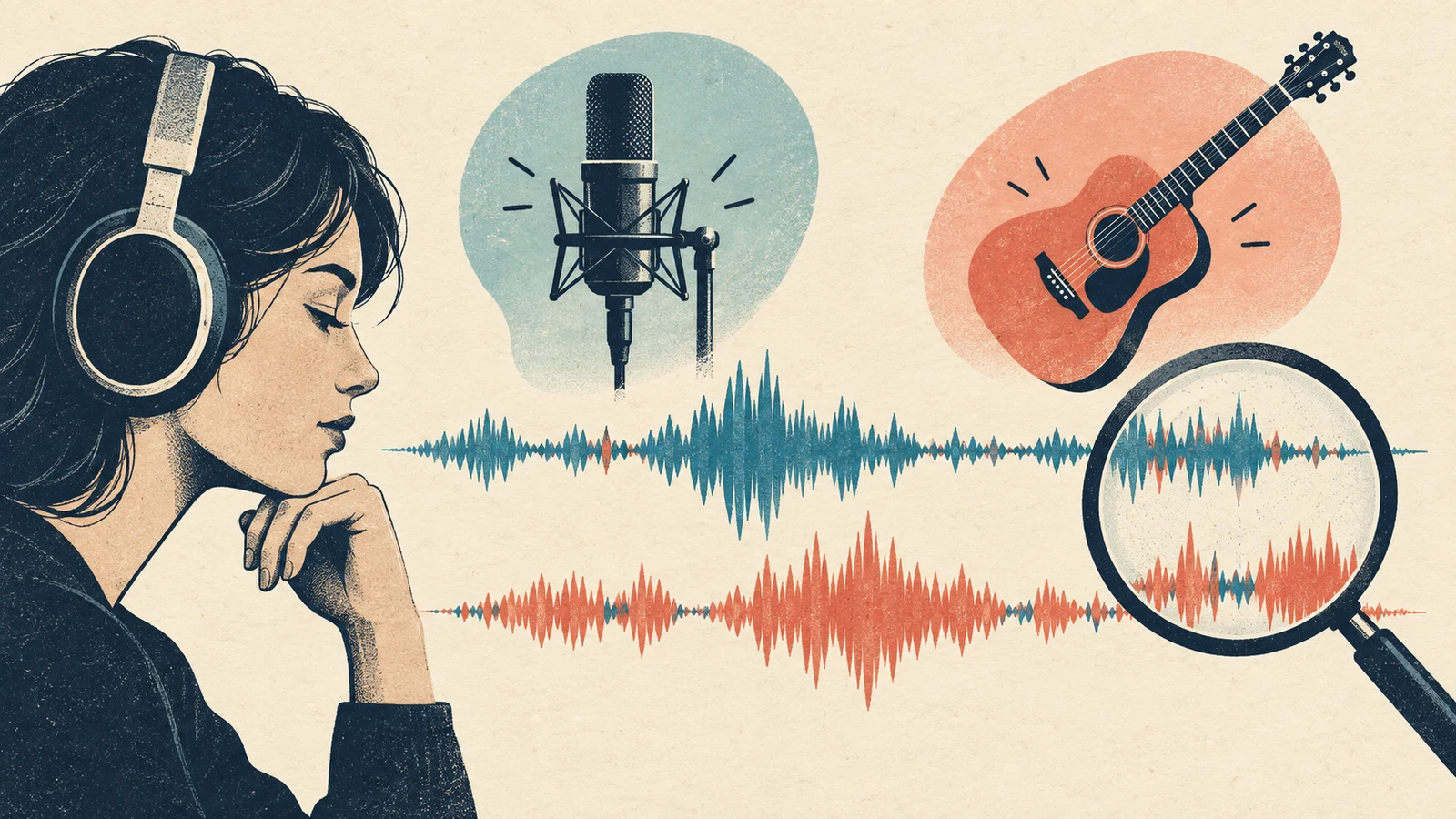
A separated file is useful when it supports the task you have in mind. A practice backing track might be acceptable with faint remnants that would distract from an exposed vocal in a finished production.
Use the same short passages for each comparison:
- An exposed vocal line: check whether words or breath sounds remain in the instrumental.
- A busy chorus: check whether the backing track loses important instruments along with the singer.
- A sustained ending: listen for watery, fluttering or abruptly changing sound around long notes and reverb.
These are things to listen for, not claimed defects in any particular product. This article does not report measured results from the three tools.
Compare at similar listening levels. First hear the original, then the instrumental, then the vocal. Finally, audition the output in the context you actually need: under your own singing, in the practice player, or in an authorized editing project.
A small test before processing the whole collection
Use a recording you are entitled to process. Keep the original file unchanged, and name exports so you can tell which tool or setting produced them.
For example, if you are preparing a rehearsal track from your band's recording, write down two priorities before starting:
Goal: a backing track for the singer to rehearse with
Keep: the guitar cues that signal the chorus
Reduce: the existing lead vocal
Check: chorus entrance, quiet second verse and final sustained note
If a result removes the singer but also obscures the guitar cue, it has failed an important part of this brief. That is more useful feedback than simply calling the output “good” or “bad.”
If you compare another tool, use the same source file and listening passages. Avoid repeatedly converting the original between lossy formats just to move it between applications. Retain the best available source and only make a compatible working copy when needed.
Vocal removal and making a new instrumental are different jobs
Vocal removal starts from an existing mix. Generating an instrumental starts from a new musical brief. If your goal is fresh background music for a video, you may not need to extract a backing track from somebody else's song at all.
You can explore a new direction with the AI Music Generator, or use the site's AI Vocal Remover when separation is the task. Check the current controls and terms for the chosen workflow rather than assuming that all tools share the free offers listed above.
Processing a recording does not, by itself, settle permission to publish the resulting vocal or backing track. For release or client work, use our music copyright checking guide to organize the source and authorization questions.
Common questions
Which free AI vocal remover has the best quality?
This guide does not make that claim. Compare a few relevant passages from your own authorized source and judge the output against your intended use. A result that works for rehearsal may not work for an exposed stem in a final mix.
Why can I still hear the singer after separation?
Treat that as a result to evaluate rather than proof that you used the tool incorrectly. Listen to where the remnants occur, try another available configuration if appropriate, and decide whether the remaining sound is acceptable for the project. Do not assume repeated processing will keep improving it.
Do I need four stems if I only want karaoke audio?
Not necessarily. A vocal/instrumental split may be enough for that task. Separate additional parts when you have a practical reason to control them, such as reducing bass or drums during rehearsal.
The most useful free AI vocal remover is the one that fits your workflow and produces an acceptable result on the recording you actually have. Start with a small test, preserve the original, and listen for both what disappeared and what you needed to keep.